Scedule My Webinar
There are 2 types of Webinar first one is Test Webinar and second one is Production Webinar
This tab provides three steps to start your webinar
Choose type of webinar as Test Webinar

Step 2 : Share your webinar link with users Click on Copy the link gets copied automatically and share copied link with users.

For mobile users to see webinar Scan QR code link is provided

Click on JOIN NOW button to Start Webinar
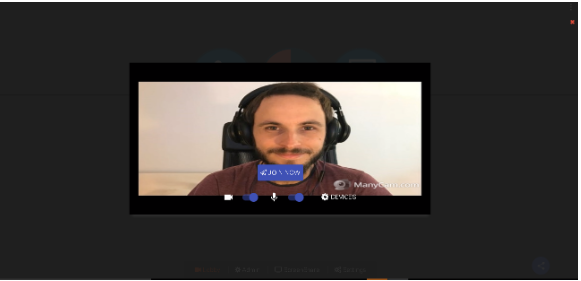
After Join webinar click on Share button or copy link from setting to share link to public user

After Share link Display below page to public user

User can FullScreen there page after click on top right fullscreen button
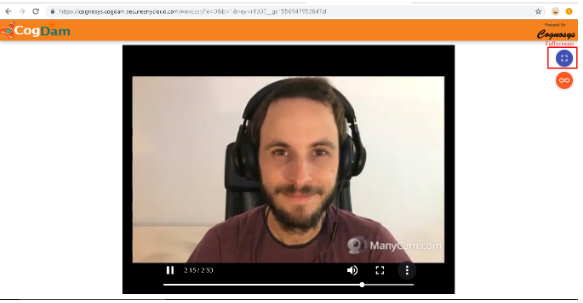
\ Click on Top Right button displying different button like Reload to refresh page,Low Bandwidth ,Normal Bandwidth,High Bandwidth.

Click on 3 dots and click on Picture in picture by selecting this you can see webinar by doing your other works like you can navigate to other browser also.

Picture in Picture Mode Displying like below to exit this mode user can click on Exit Picture in Picture mode

User Who are broadcasting can share there screen to all users who are watching live webcast. He can start screenshare in one click from top Screenshare button or by clicking on bottom ScreenShare button you need to click on Start Sharing Screen. only prerequisite is Screenshare extension should be installed.

Click on Share button to share your Screen

After Share Screen Public user Display Screenshare on top left Corner of there page

User Can take Screenshare at Center of page after clicking on Screenshare

User who are Broadcasting Stop there screenshare after click on Stop Sharing screen or directly he can stop by clicking on Top screenshare button.

User who is Broadcasting can stop there webinar after click on disconnect button

After Webinar Stop Public user display below page

URL To Use For Survey And Feedback


Enable The Chat Bot Link And Put The Whatsapp Link

User Can See It Only On Android After Clicking The Link

Enable Session Info Media

Choose File and Click to View

Click On Manage Media

Choose the File

\ Go To Custom Background Where User can Upload Image,Videos for Small Screens likeAndroid And Large Screen For Web As Well

Choose Approvers Mail Id And Click Next

Choose Role To Add Users And Click Next


Join The Webinar and Click Light App Public View

Click On The Survey Tab

Fill The Survey Form And Submit

After Disconnecting The Meeting The User Can See a Pop Up Coming To Give A Feedback


User Can Give Their Feedback and Submit
