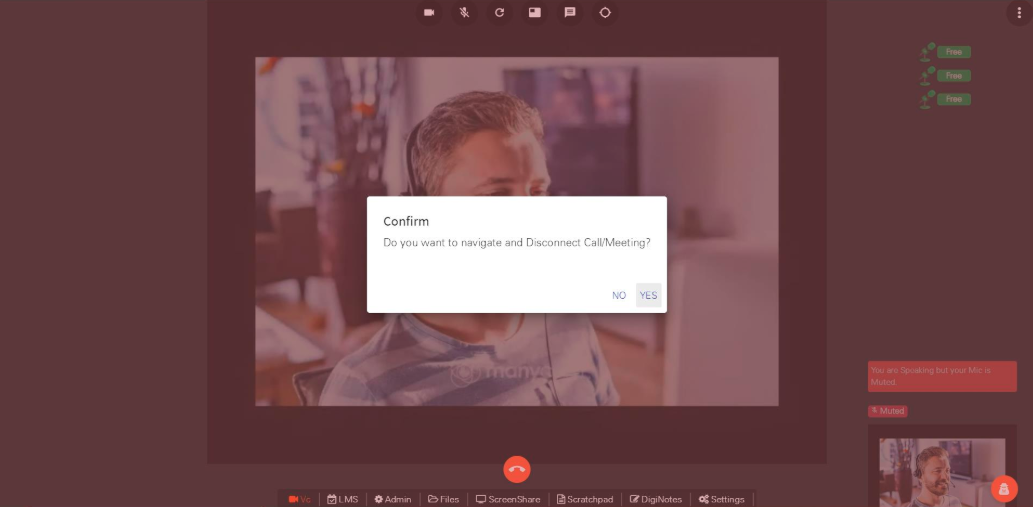
LMS Event
Select event type as a LMS Event.
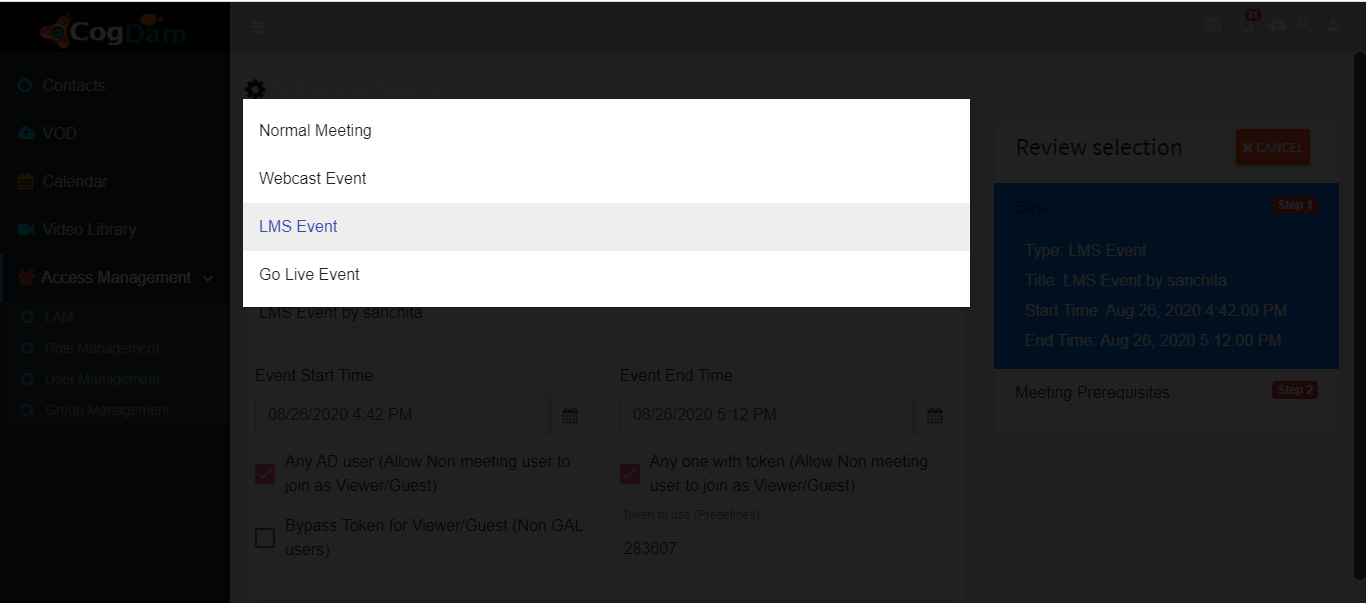
Fill in relevant info about LMS event and click on save
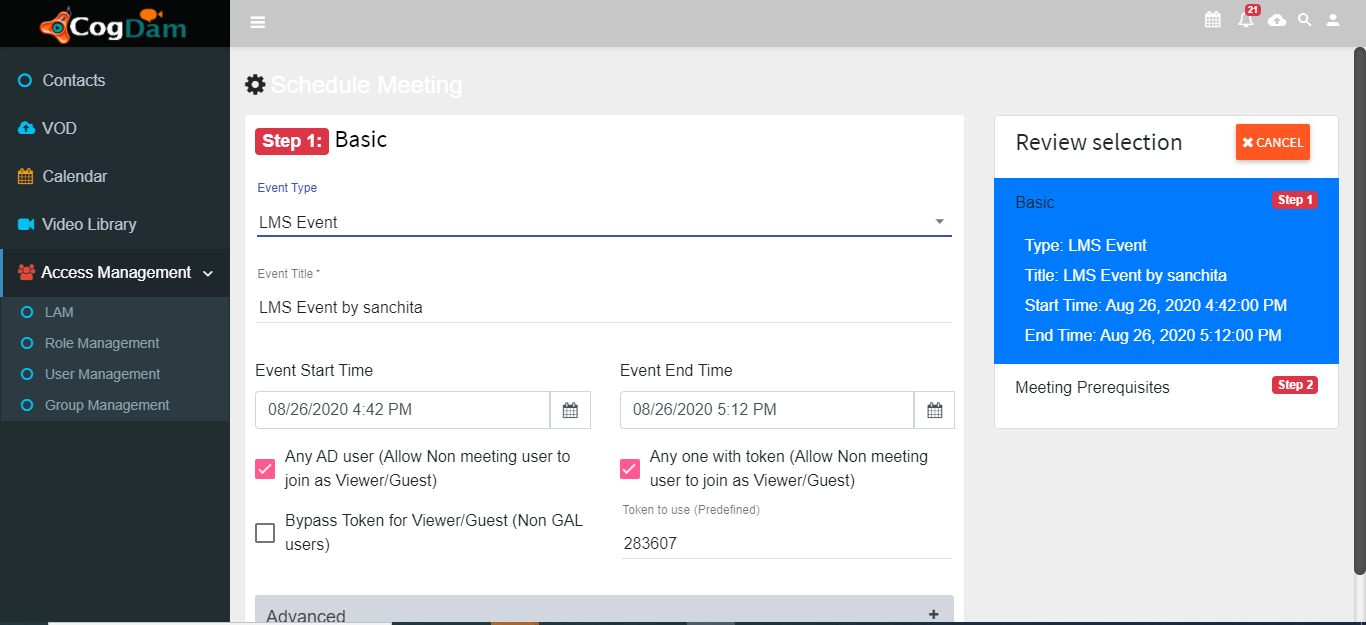
Upload Document and Click Next
So the Recent created LMS event will be display on calendar.
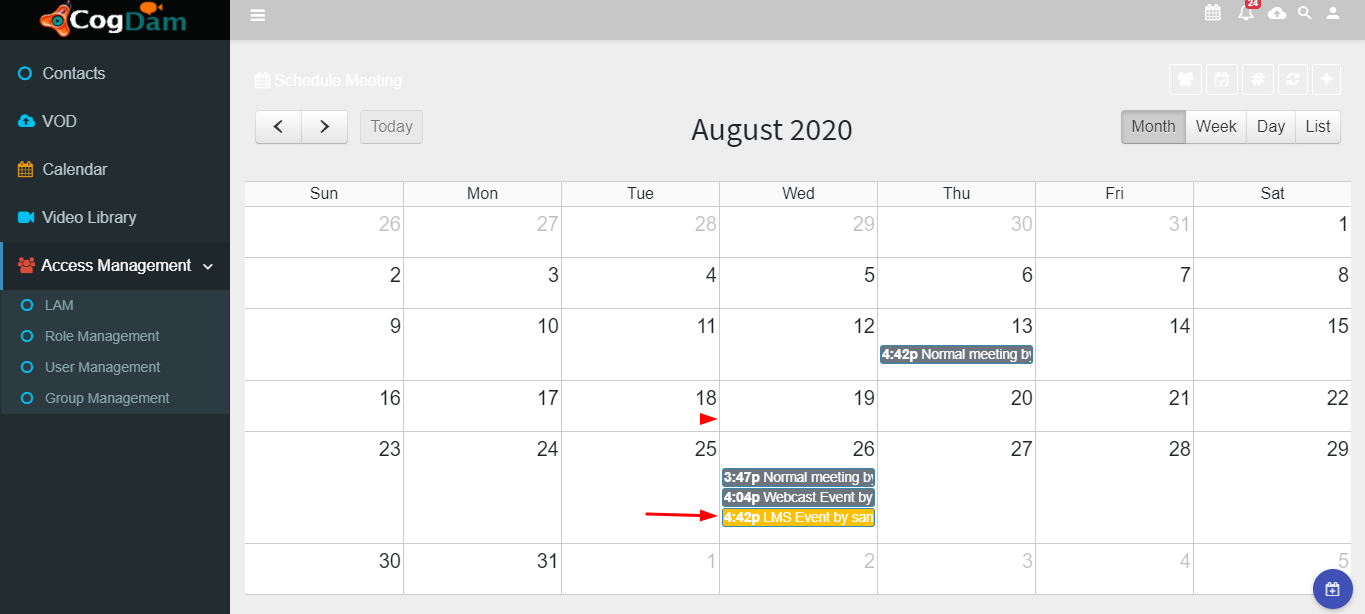
When we click on event notification on calendar Meeting details get display.
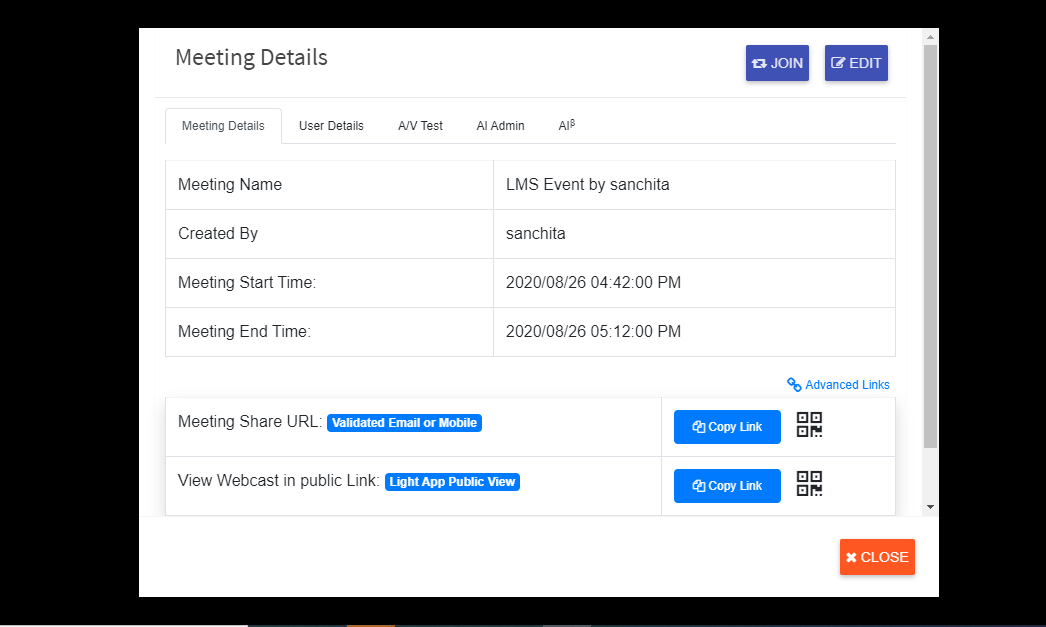
User Details of meeting will be display as below to join meeting click on ‘Join’ button.
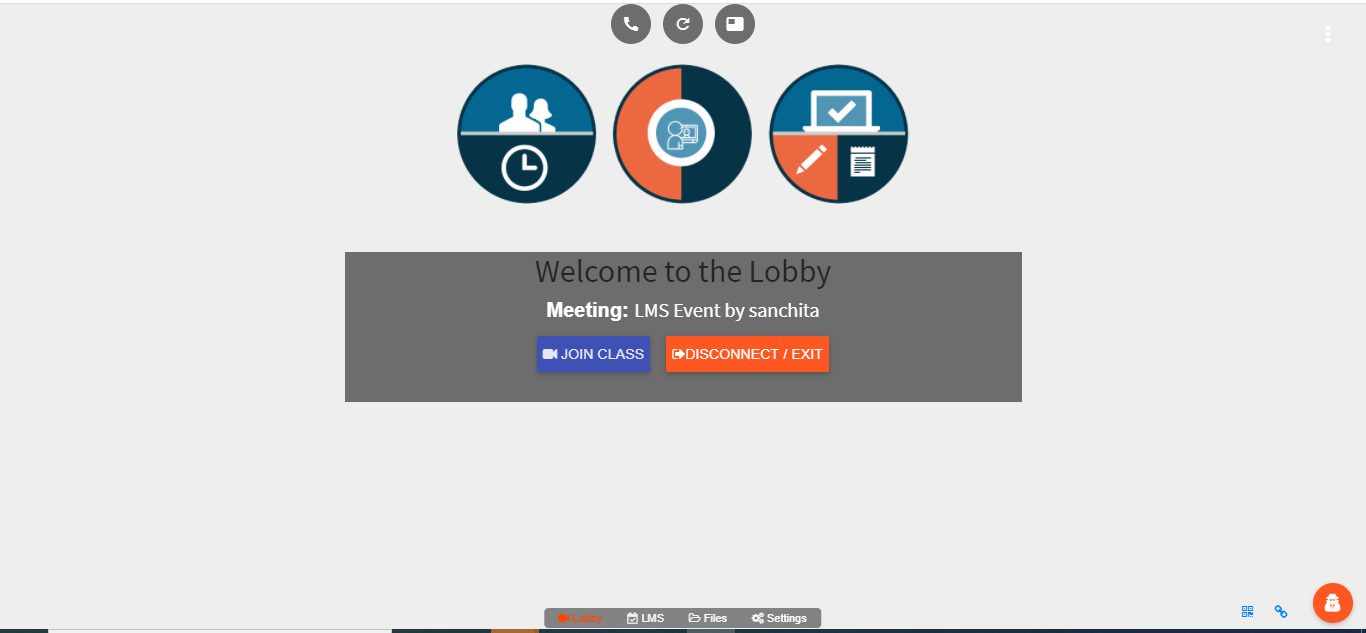
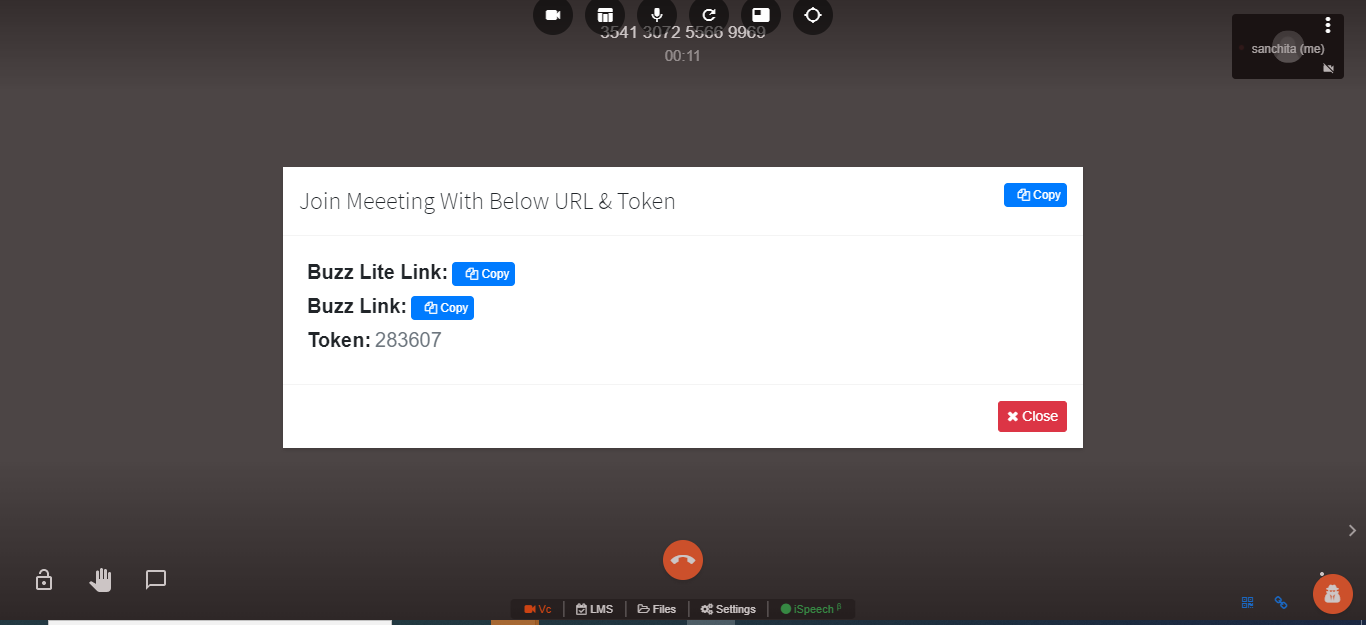
To join LMS event click on ‘Join class’.
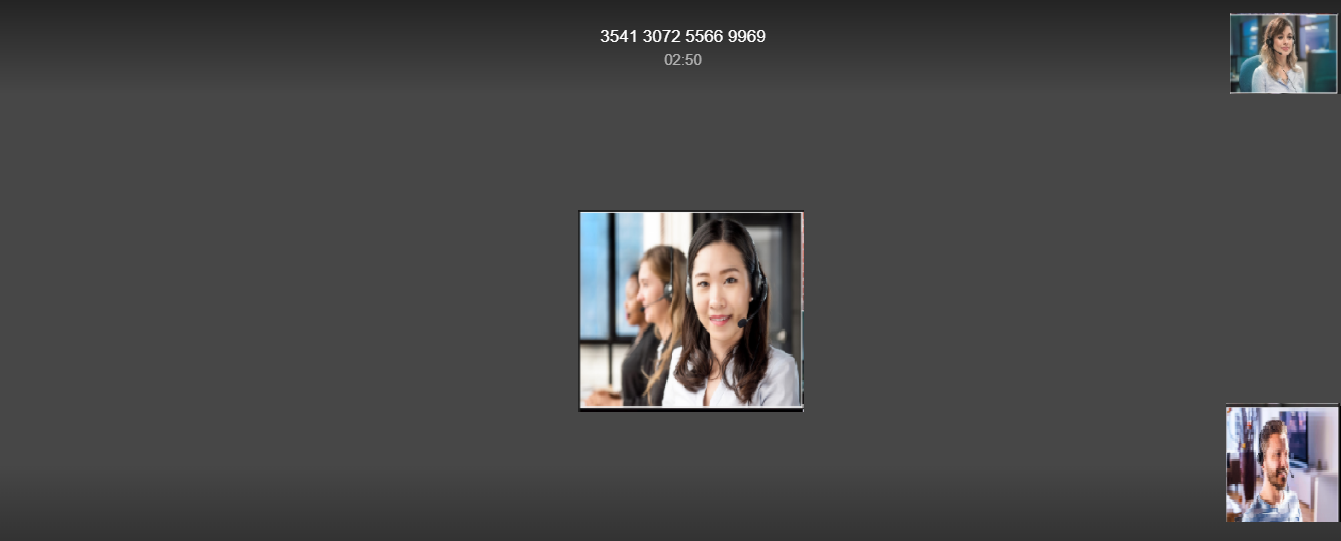
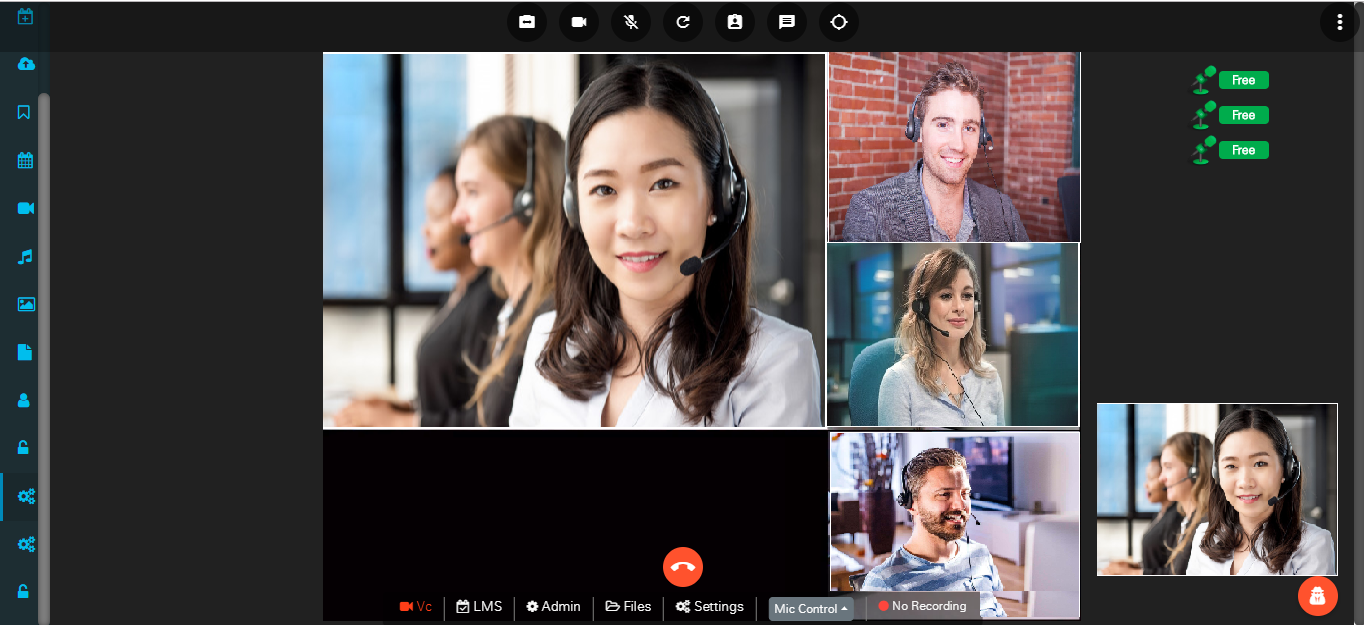
When we get connected in meeting we can see self feed and conference feed on our page.
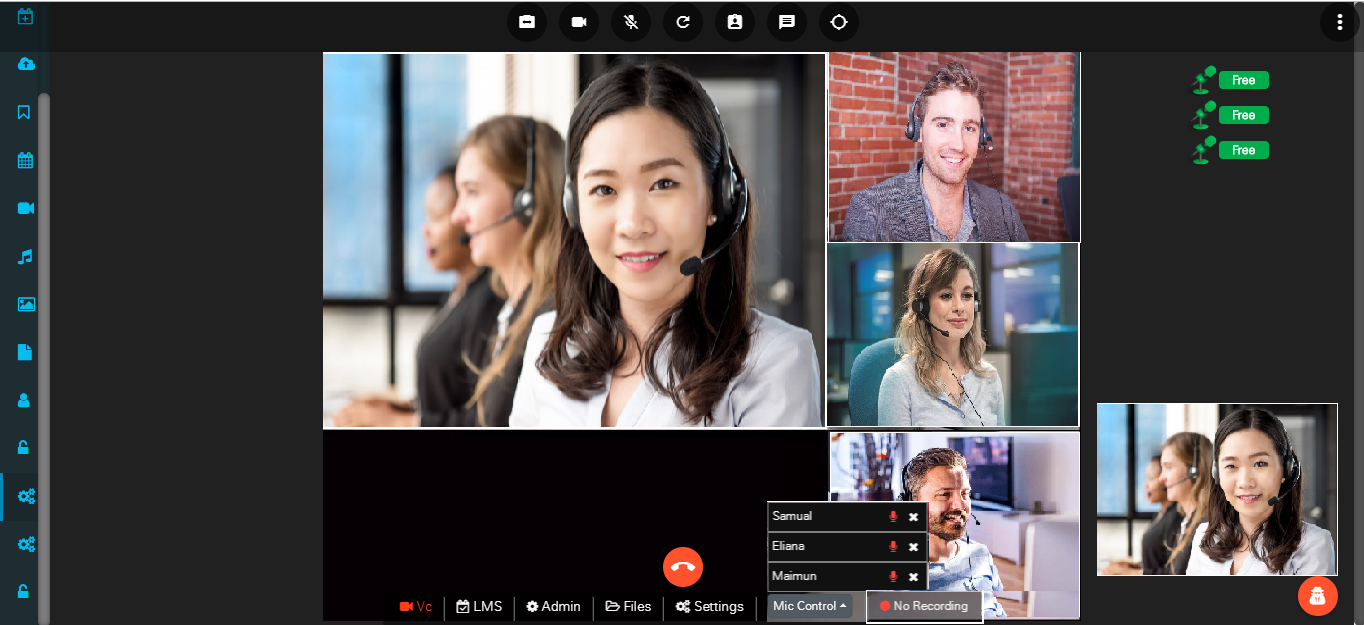
When more than three users are joined then it will show mic control to the moderator and owner of the meeting, from this mic control option moderator and owner can ON/OFF the mic of the users in meeting.At one time only three users can talk.
VC
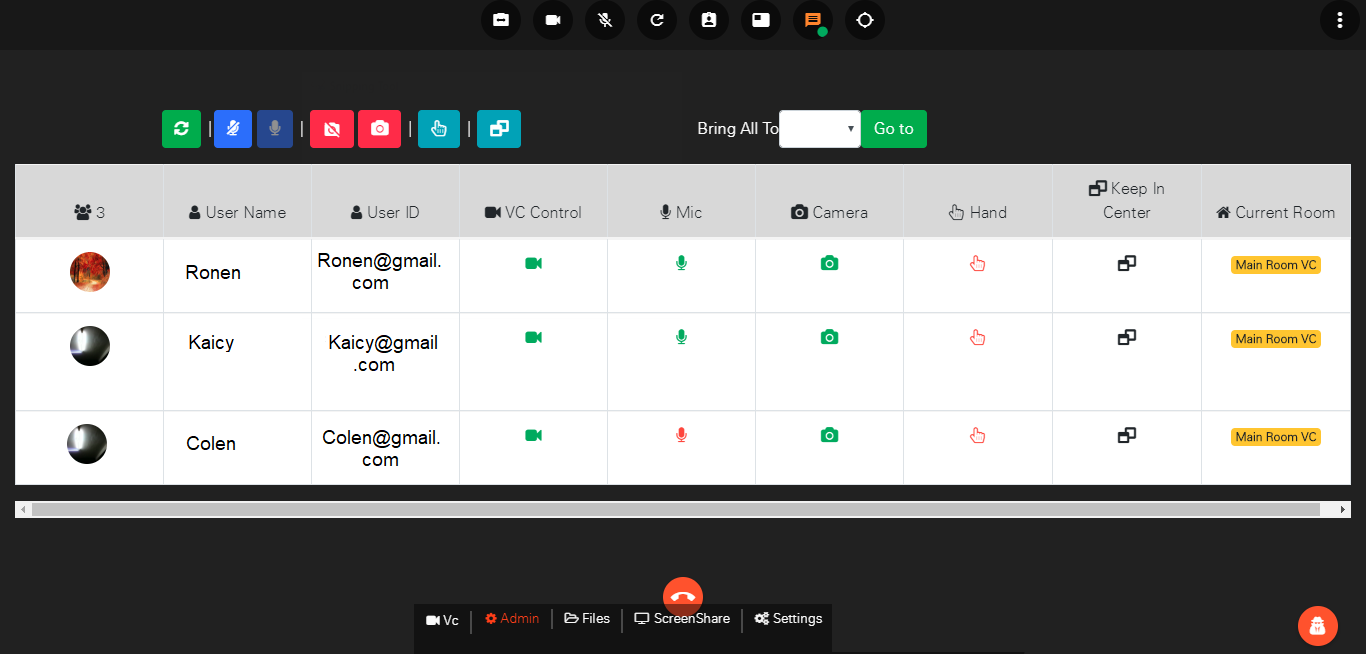
Admin and owner can turn ON or OFF video camera of any user through the Admin tab .
Files
We can see uploaded files which are going to require in meeting.

Scratchpad
Click on ‘Start Scratchpad’ to start Scratchpad.

DigiNotes
Click on ‘Start DigiNotes’ to start DigiNotes.

Here we can create notes during meeting.

Click on share your screen option icon you can share your screen.
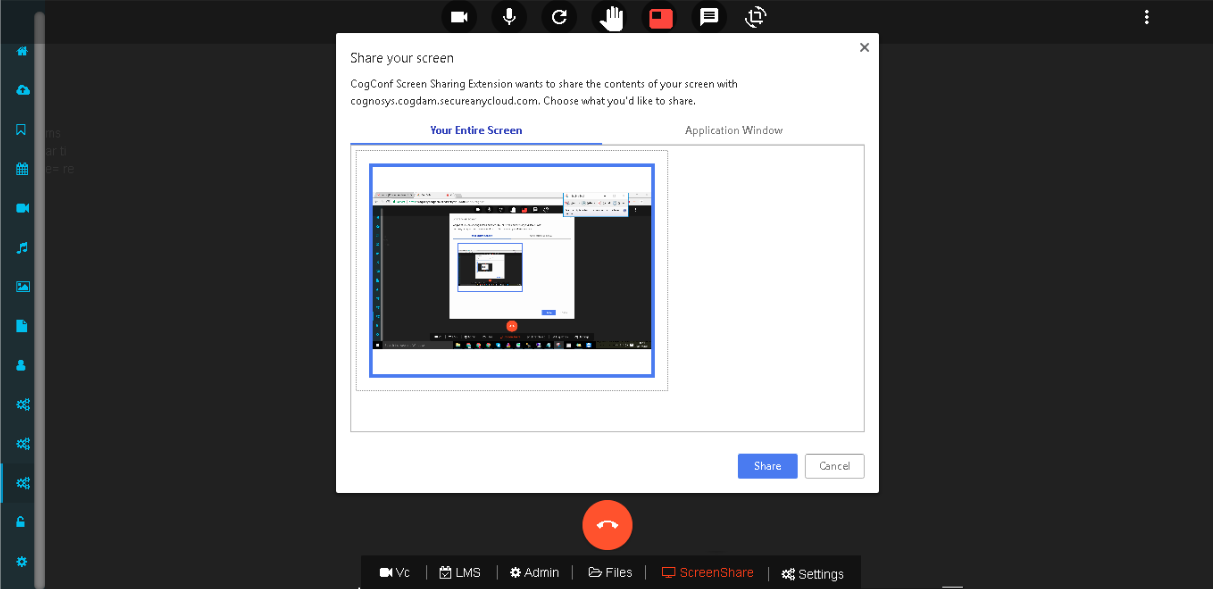
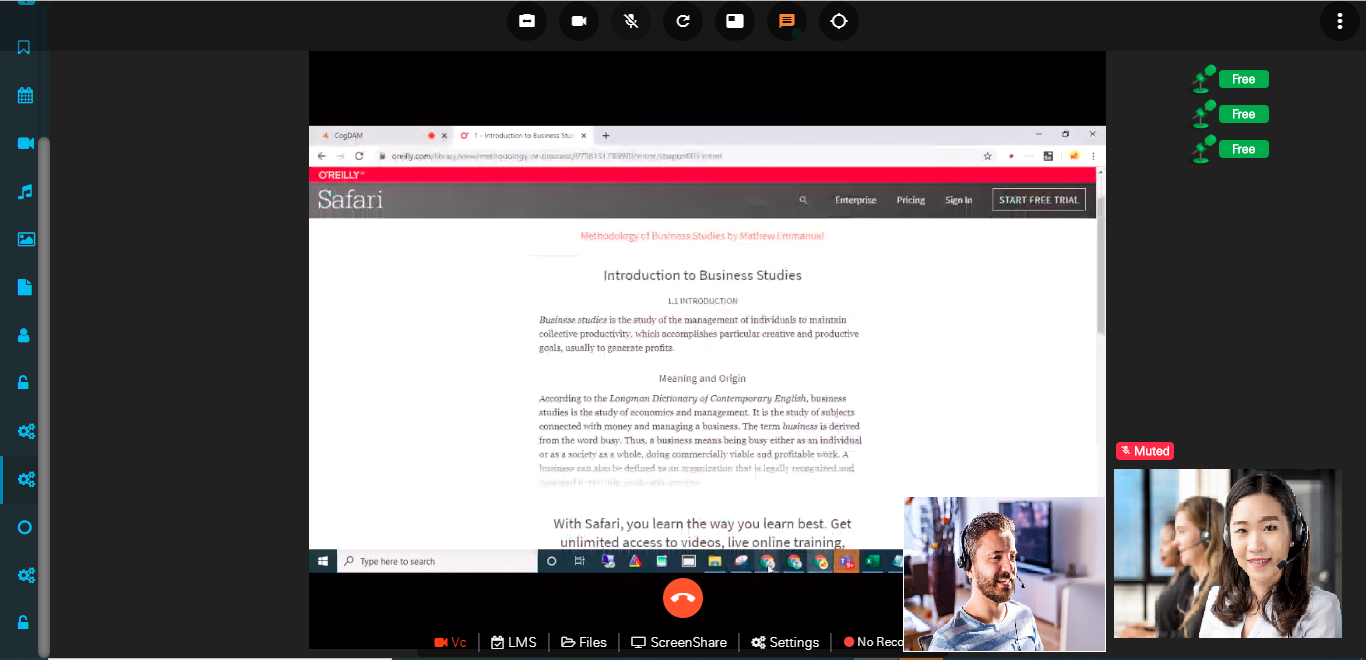
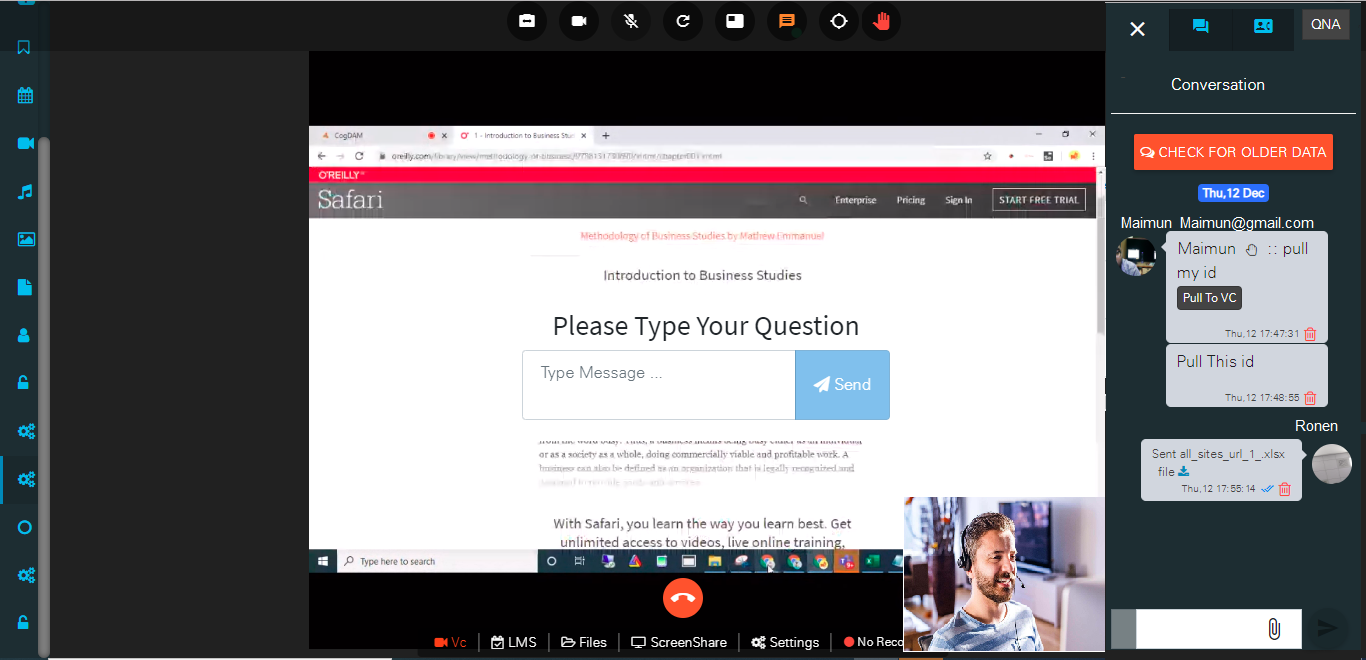
After screen-sharing screen-share displays to all the users and the user who is sharing screen its Camera feed will be shown at the bottom right corner of the screen-share feed.
You can ask question during meeting by clicking on ‘Raise hand’ icon or any viewer and guest wants to be pulled in the meeting then through this hand raise user can tell the owner to pull him in meeting.
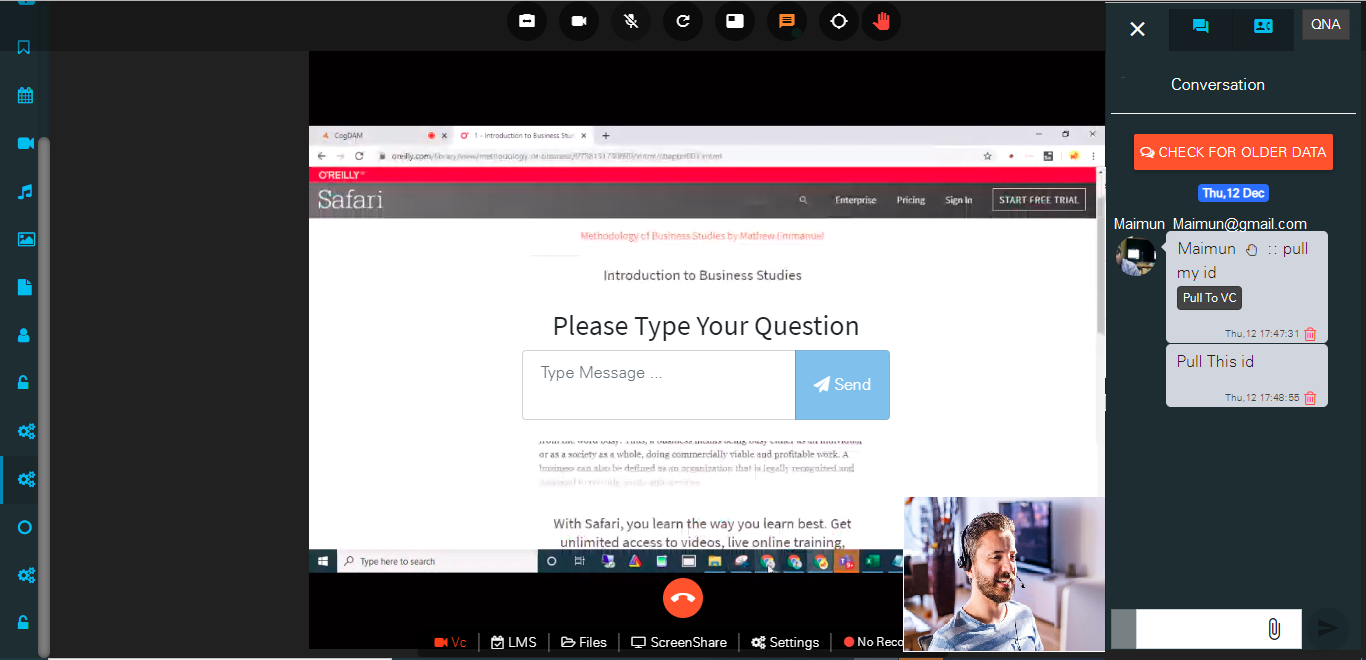
\ If you want one to one communication between clients you can use ‘Pull to VC’ or ‘Pull to Lobby’ option for chatting.
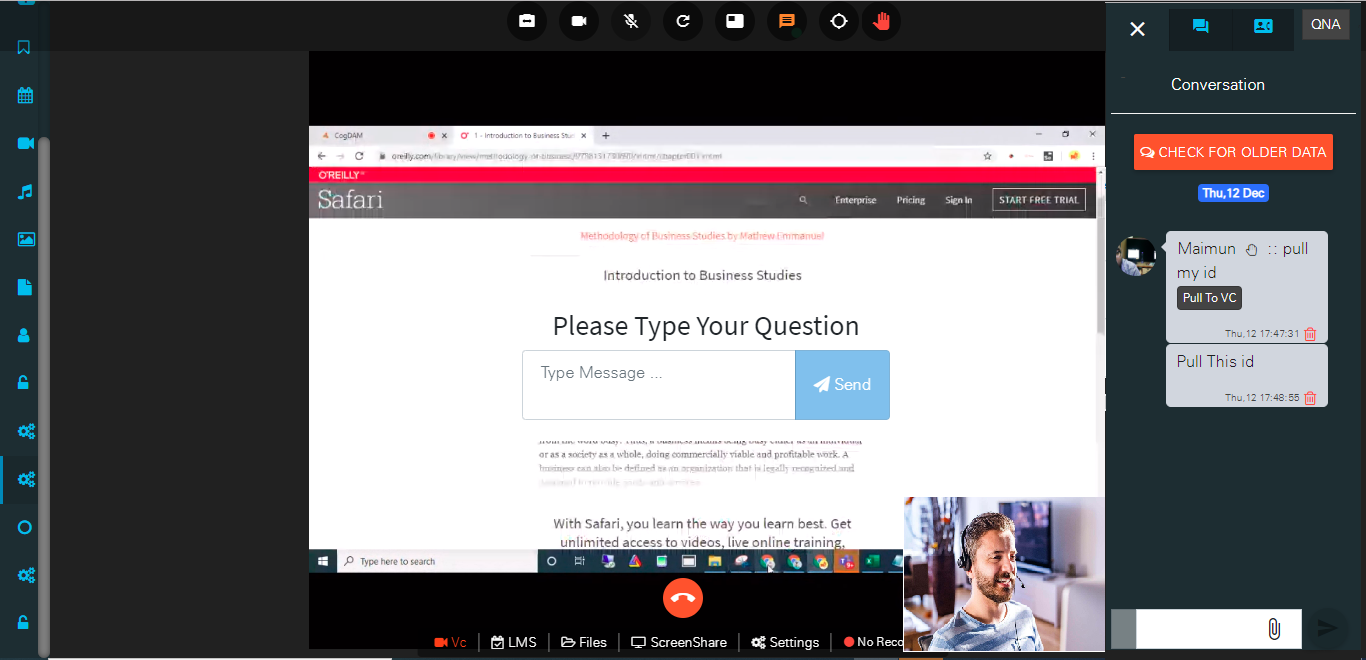
Click on chat option and you can chat with all and can send Chat attachements also like any doc file , image, video , audio.
Settings
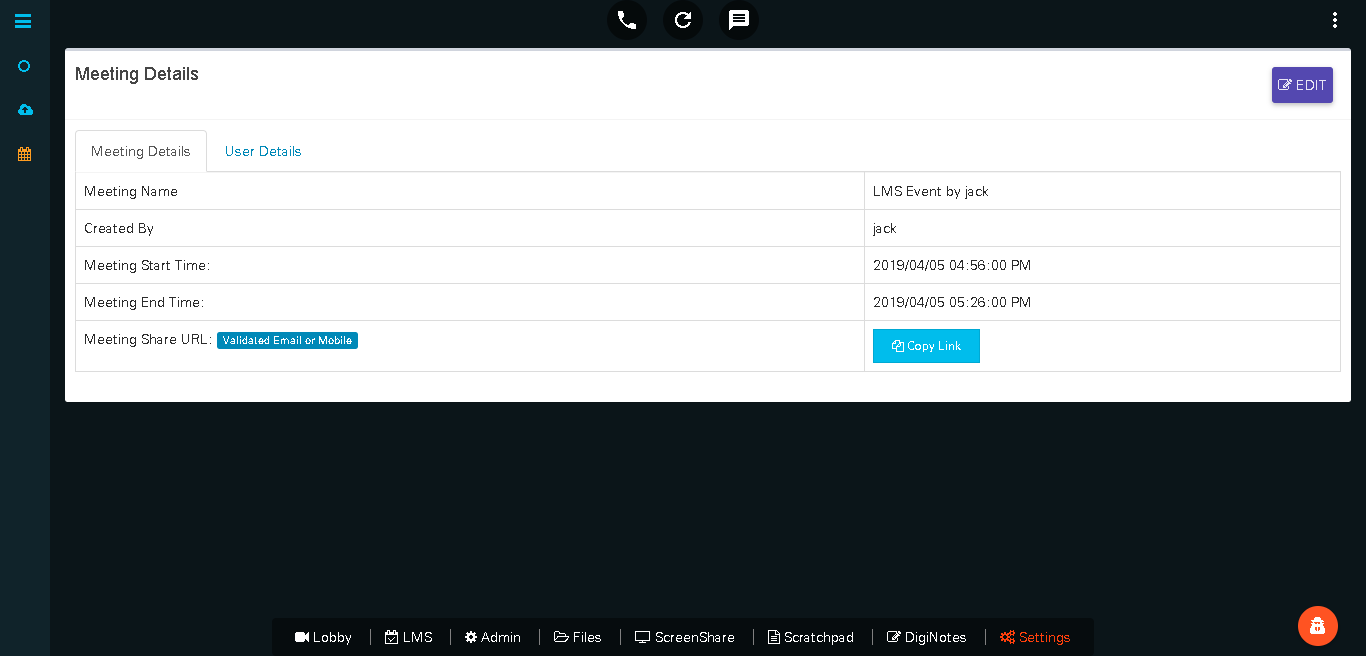
We can see meeting details and copy link to share.
We can allocate the maximum users per room for meeting.

We can create another room for specific users in meeting.

Meeting room details can be seen and also particular room meeting can be joined form here.

After joining any room we can start meeting with the users available in that room.
User can disconnect meeting from disconnect icon.