HR
Select Schedule Interview on HR tab
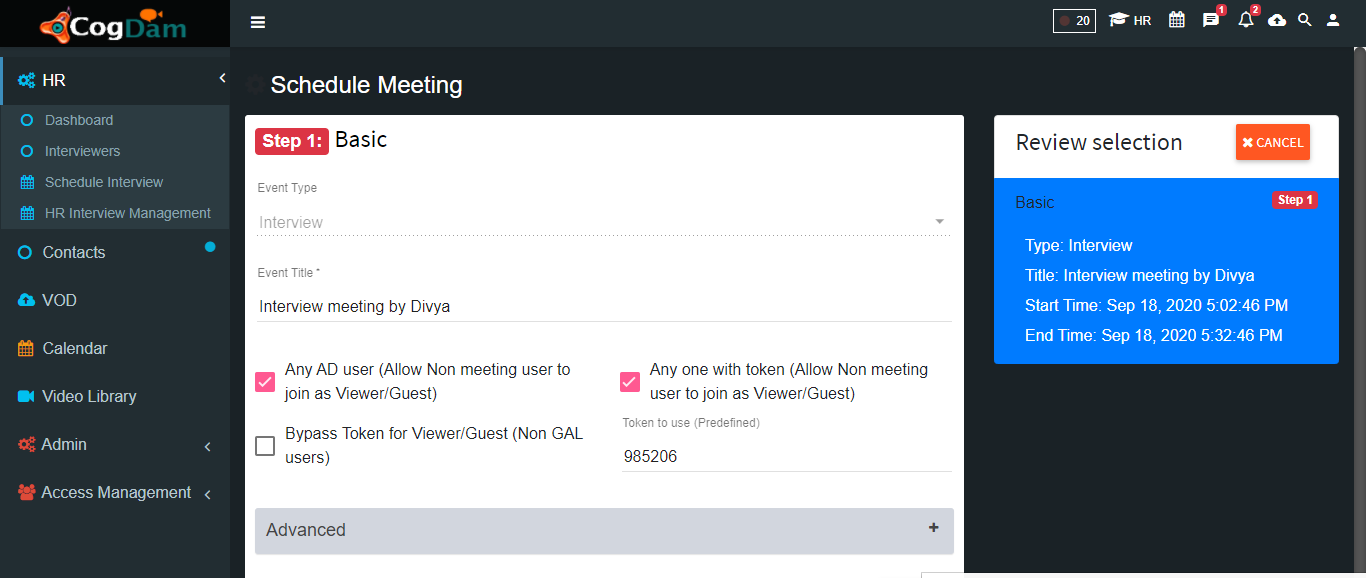
Select Advanced tab and see Event Agenda and selected HR usergroup
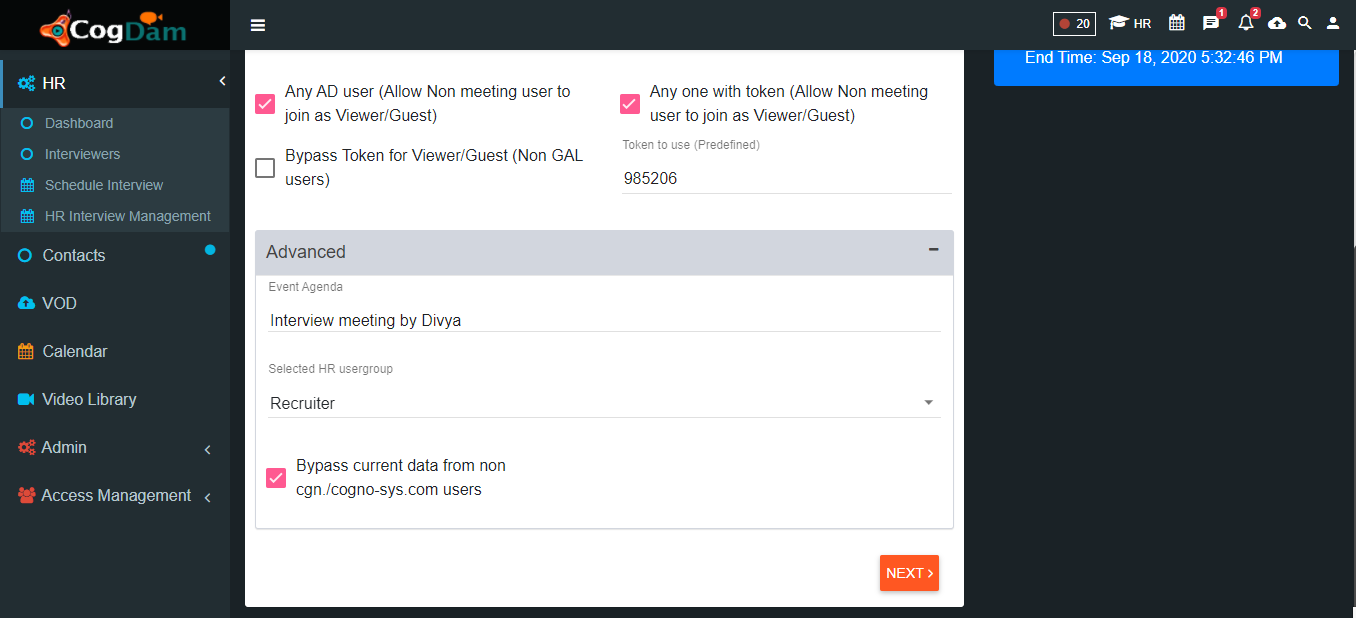
Click on Next and fill all required filed and click on Add Candidate
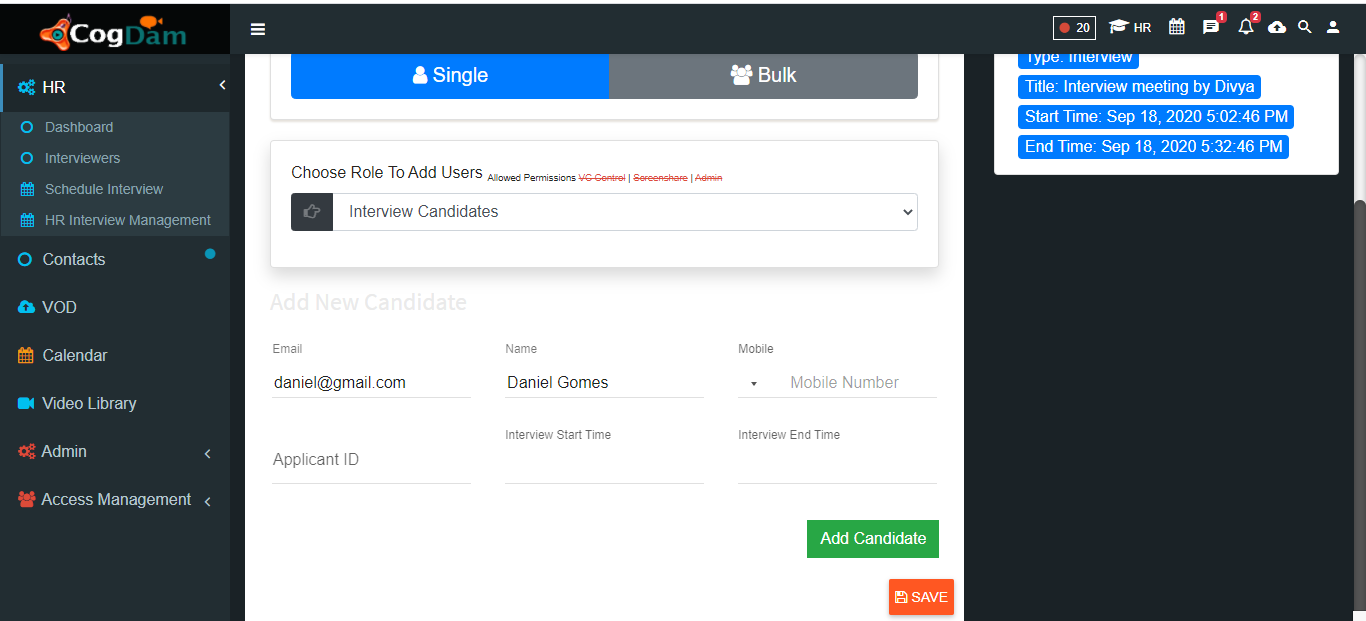
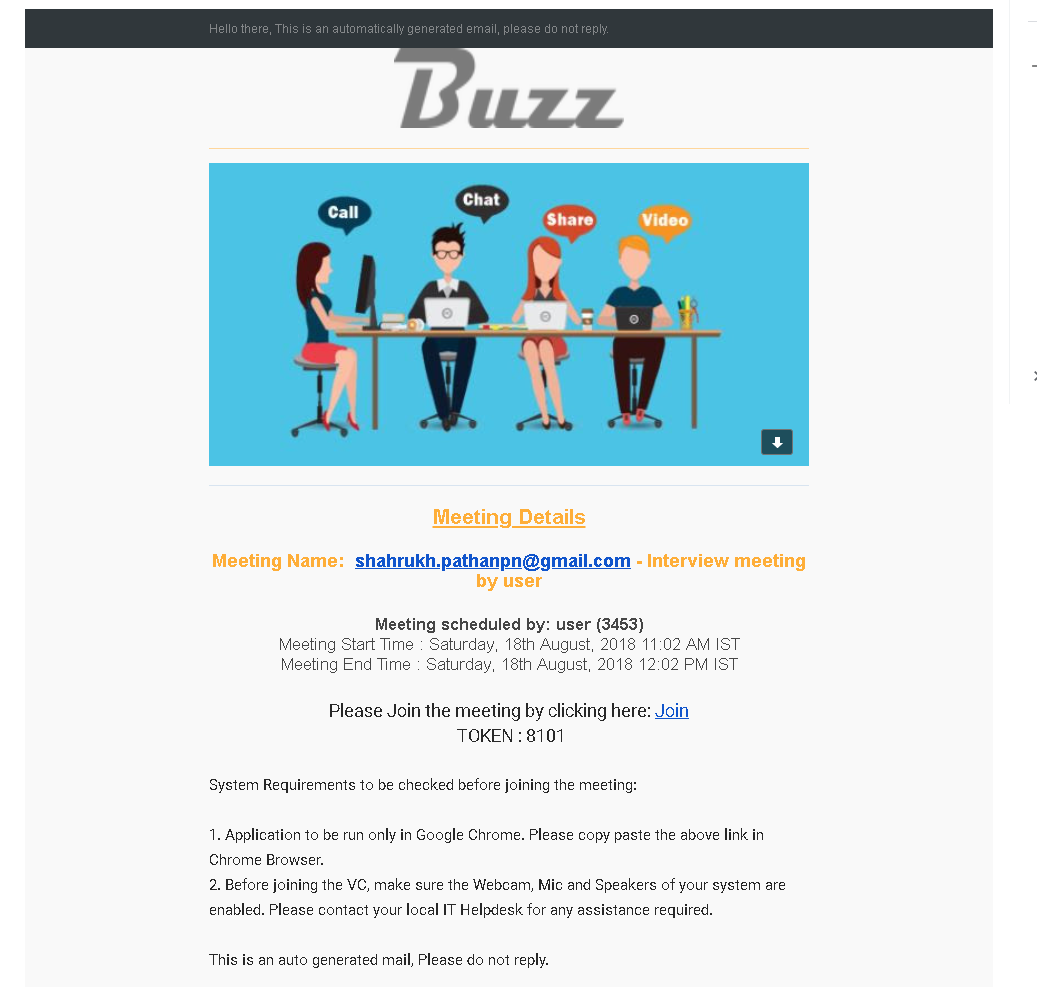
After Add candidates and click on next after HR meeting will schedule and there we can see copy link of interview with token and owner can join interview
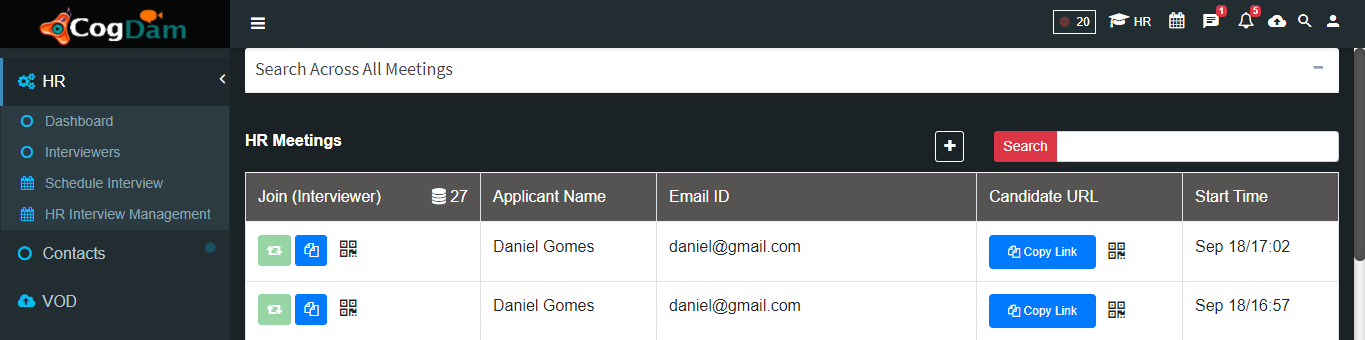
Click on Join and interview get start by clicking on Connect
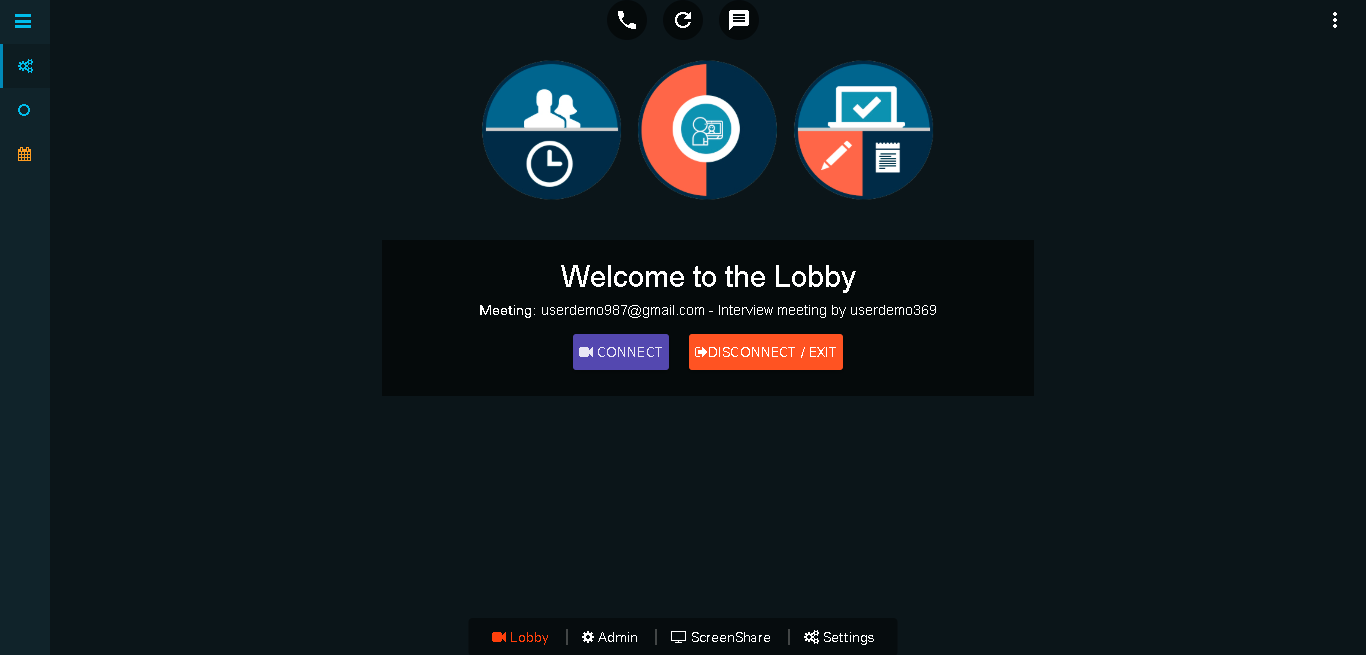
Click on setting we can see meeting details.

Click on ‘User Details’ tab to see Owner, Interview candidates, Interviewers to join Interview click on ‘Join’ button.

Candidate connected for interview.

we get a notification on our email for upcoming events.
Admin / Interviewer now turn ON the VC to start interview.

Interview started.

Click on ‘Share’ button to start sharing entire screen.

We can see the shared screen .

Click on ‘Raise Hand’ icon to ask a question.

After question is asked it will be display at left side of window.

We can also share images or any other documents during event.
