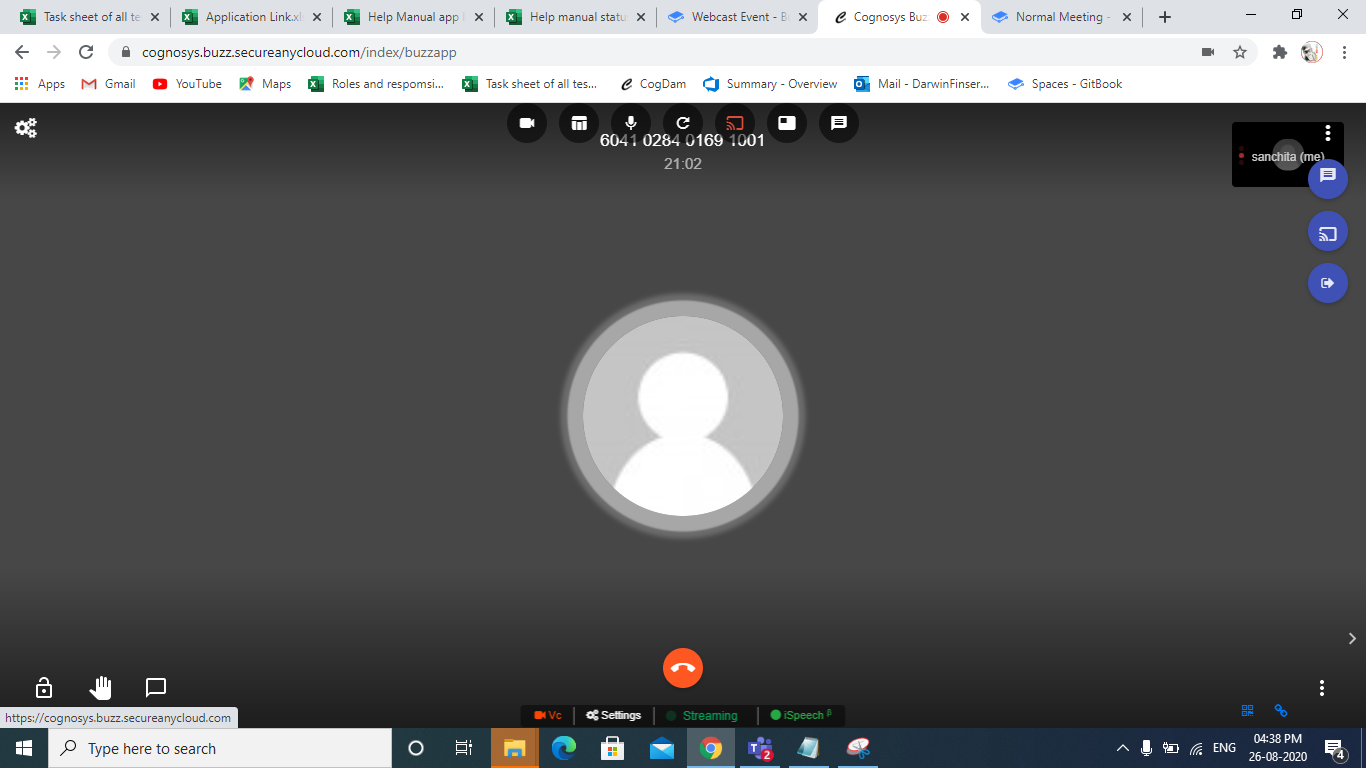
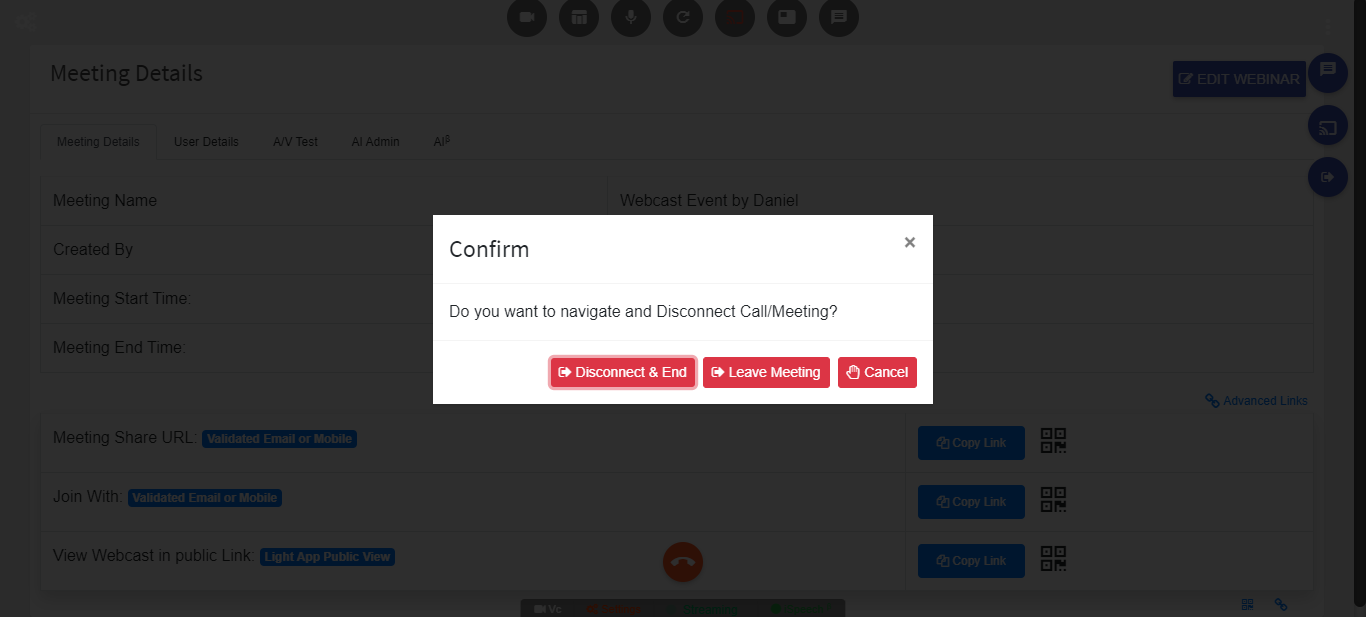
Webcast Event
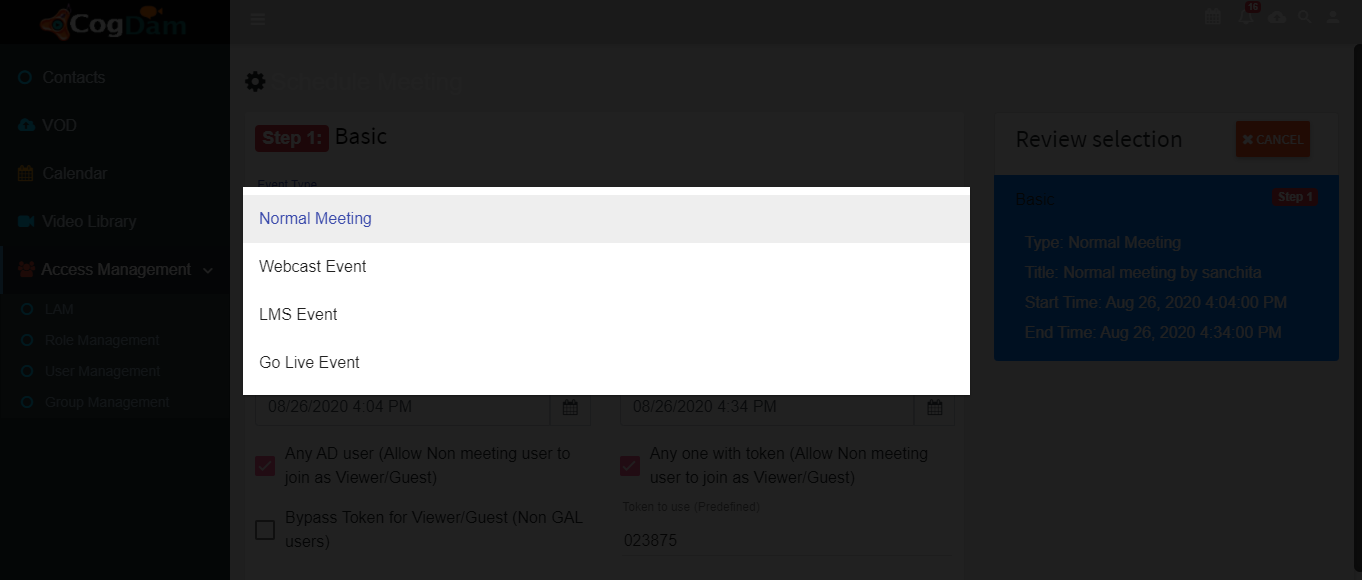
Select event type as Webcast Event
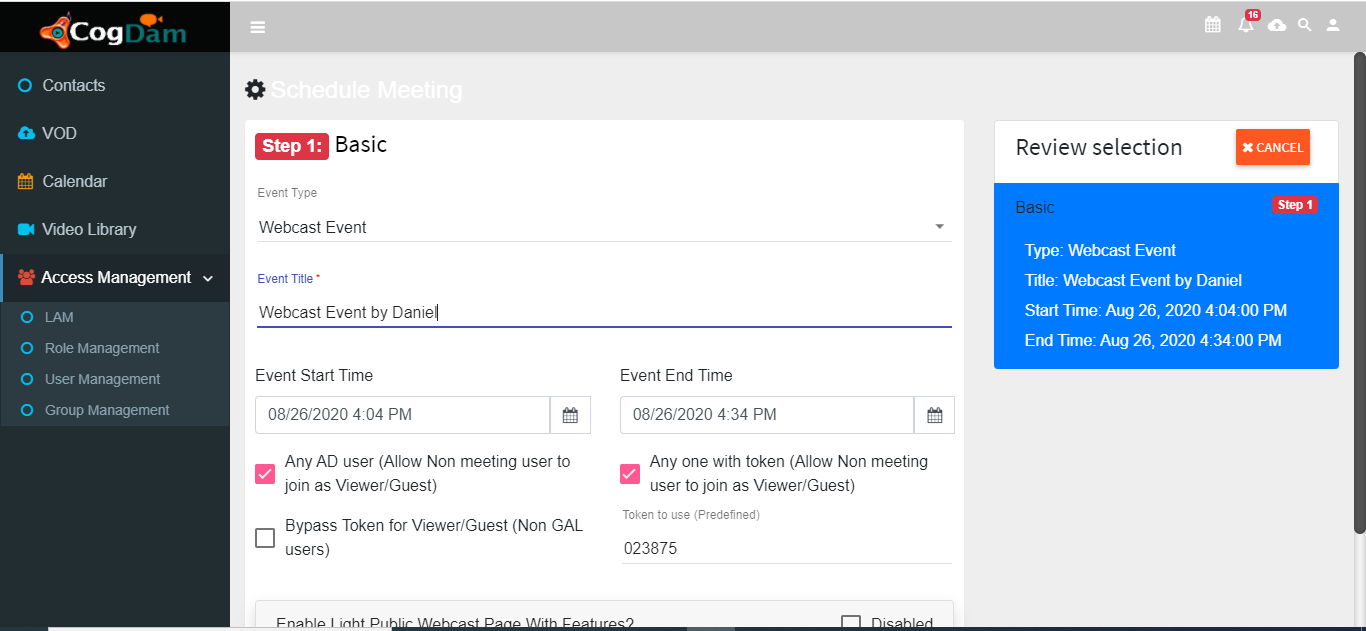
Fill all relevant information and click on next
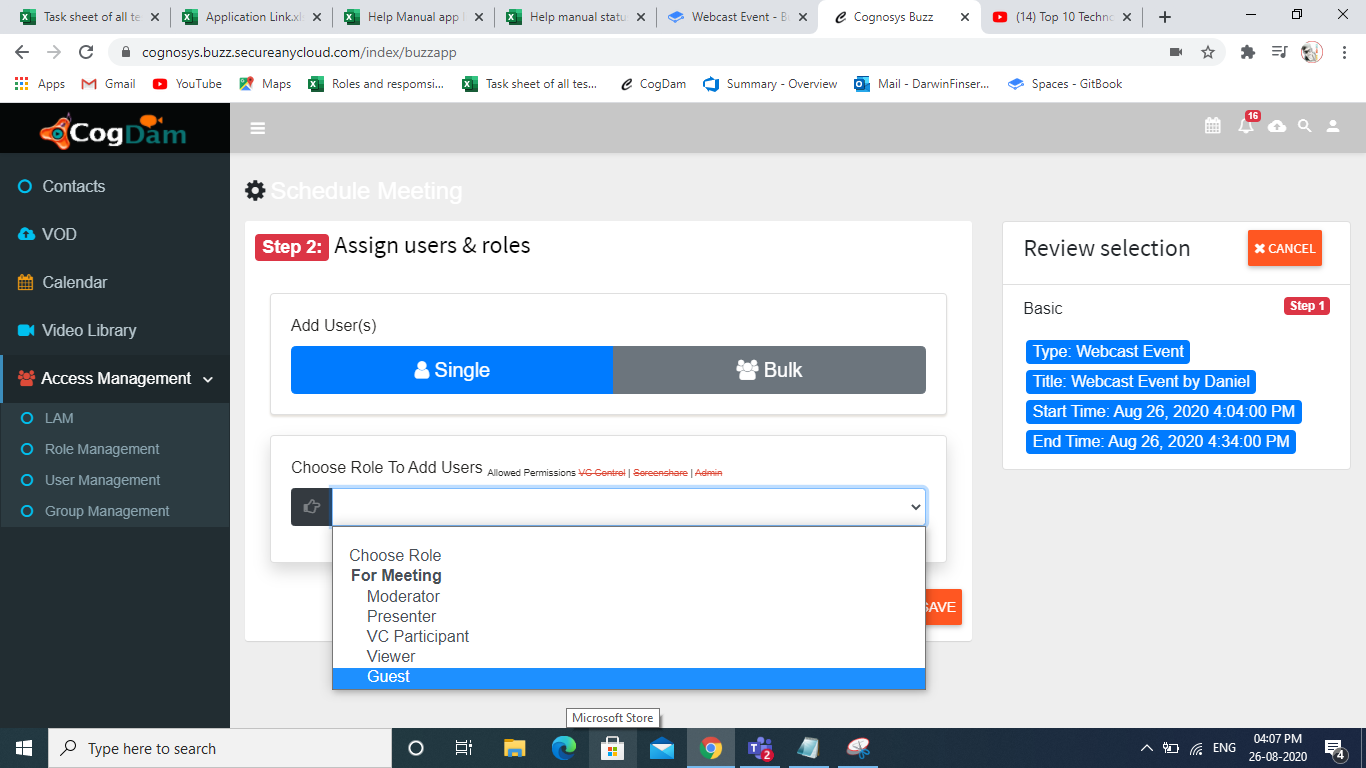
Click on choose role to add Viewer from dropdown.
After selecting Viewer
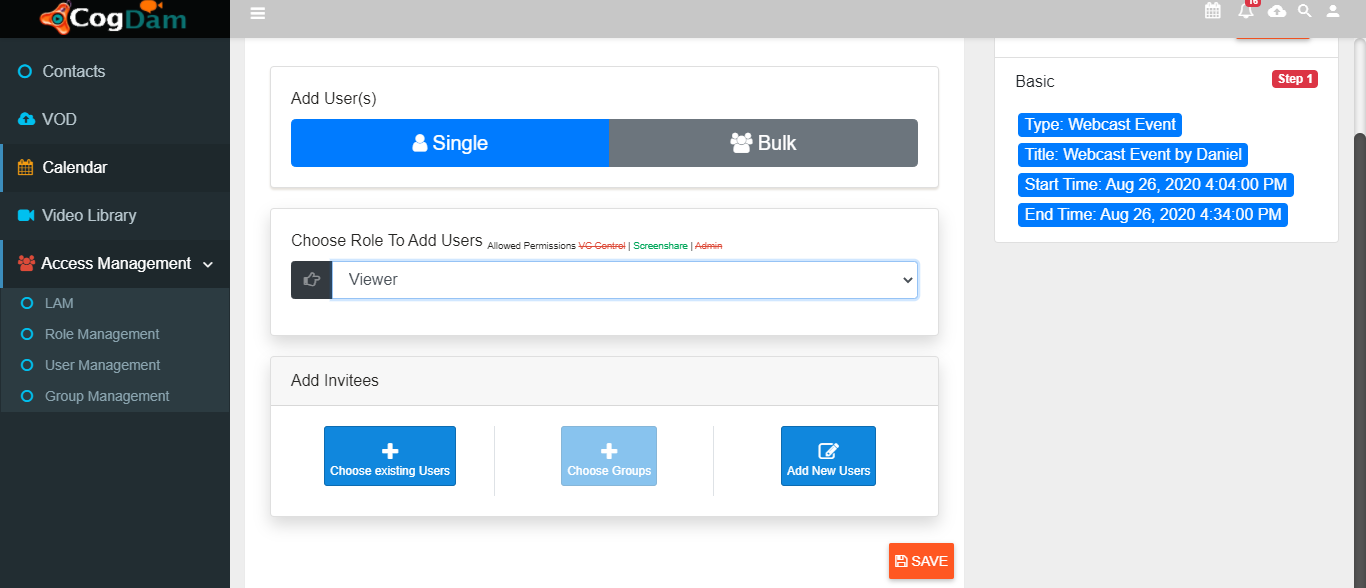
Check Add Invitees, select one of them and add user after click on "save & close"
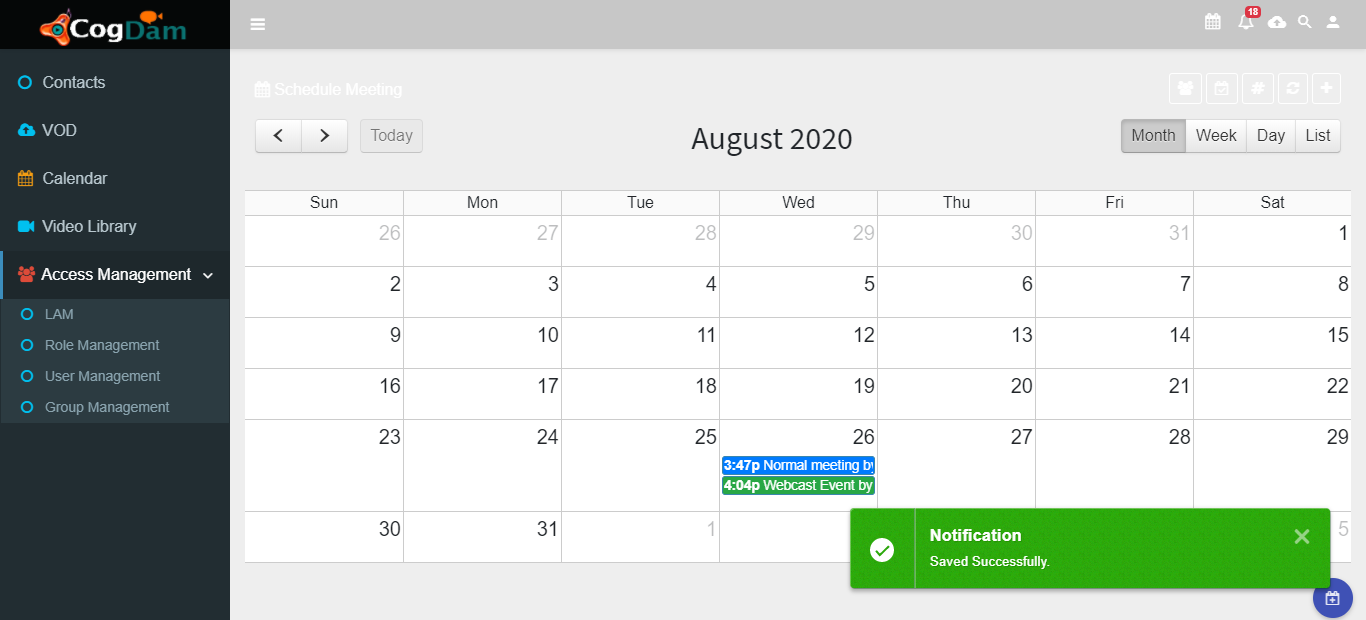
Resent created webcast will be displayed in calendar
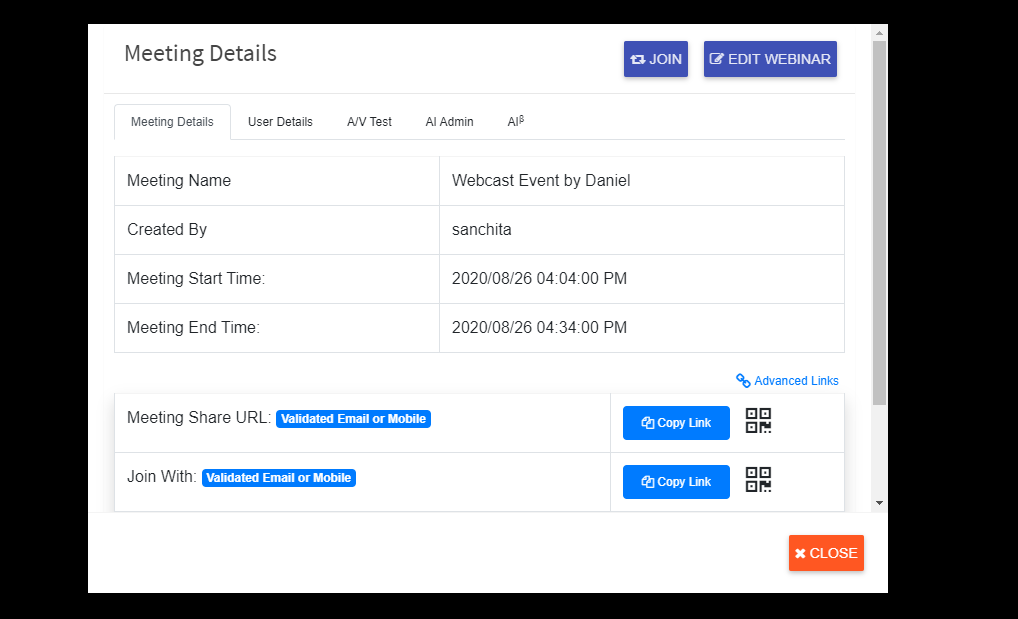
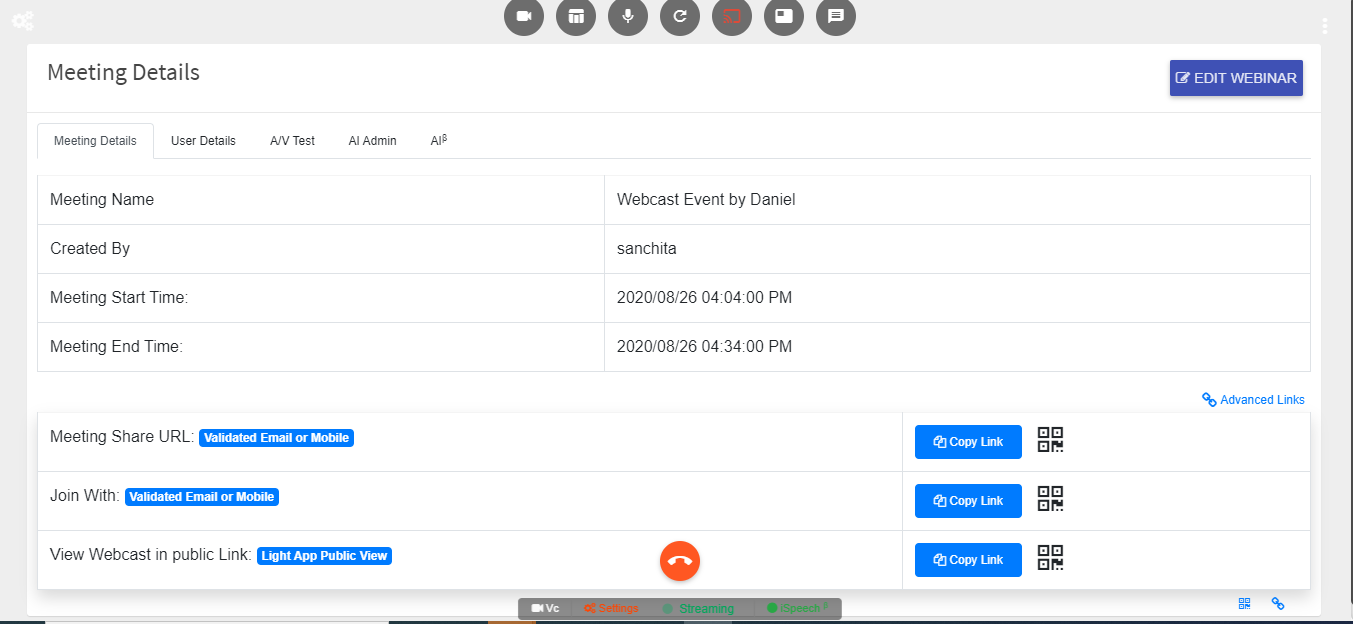
After Clicking on Webcast event user can see meeting details and user details.
After Clicking on join tab and click on Connect button
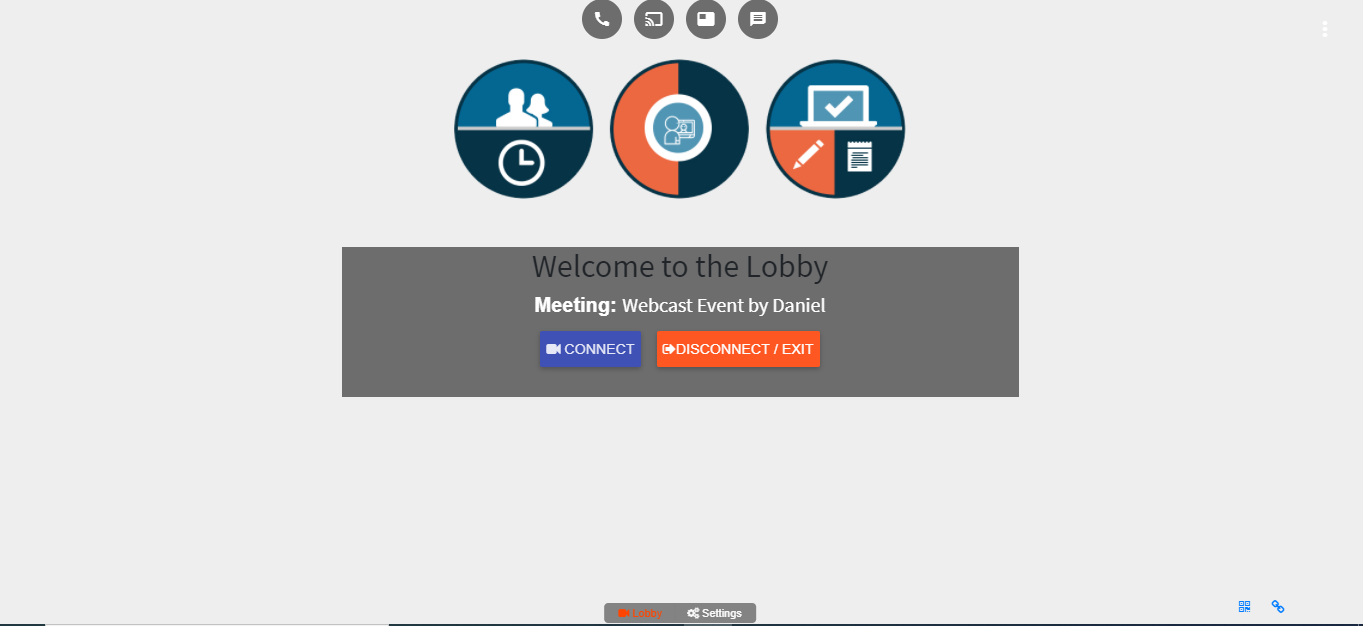
After few seconds Join Now window come, user can click on Join Now
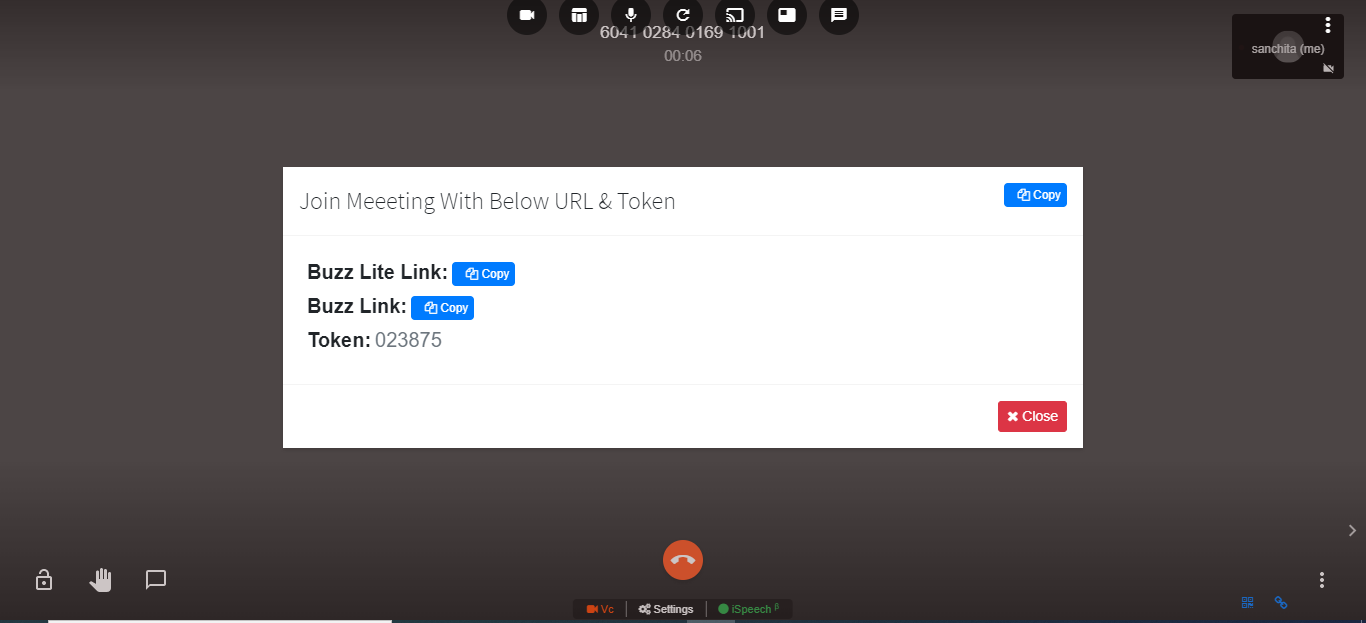
Click on Webcast Icon
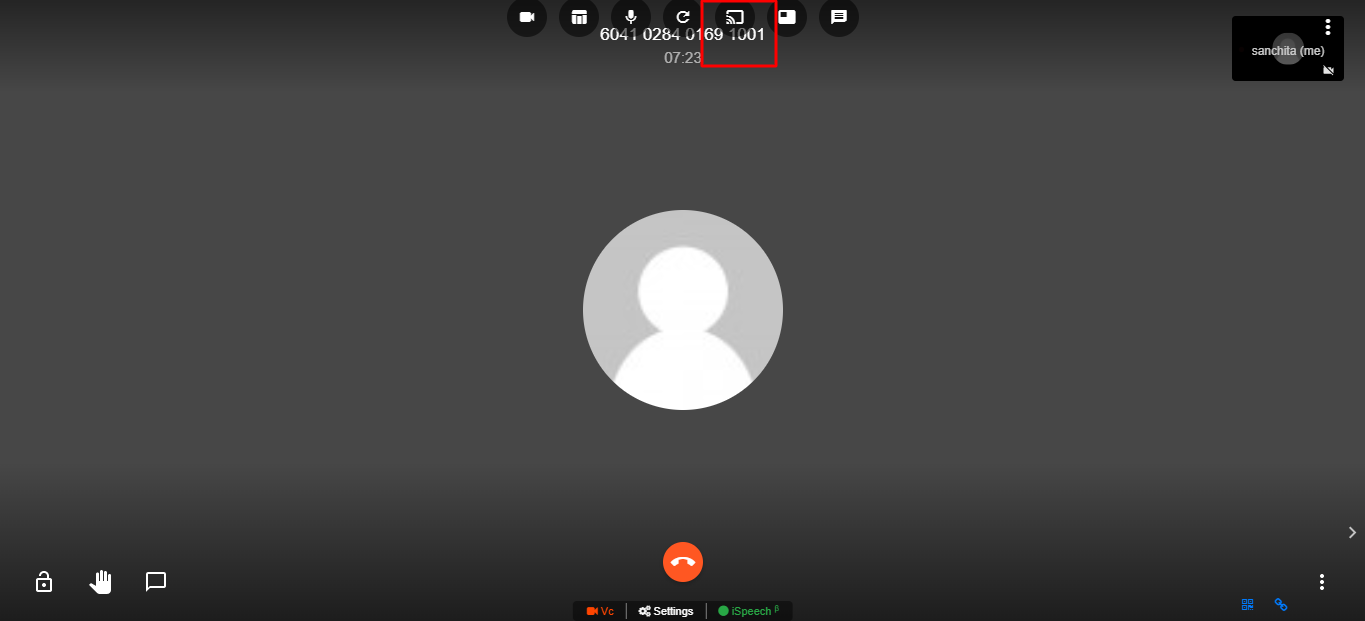
Webcast will be start after click on Start/Stop Webcast and click on yes
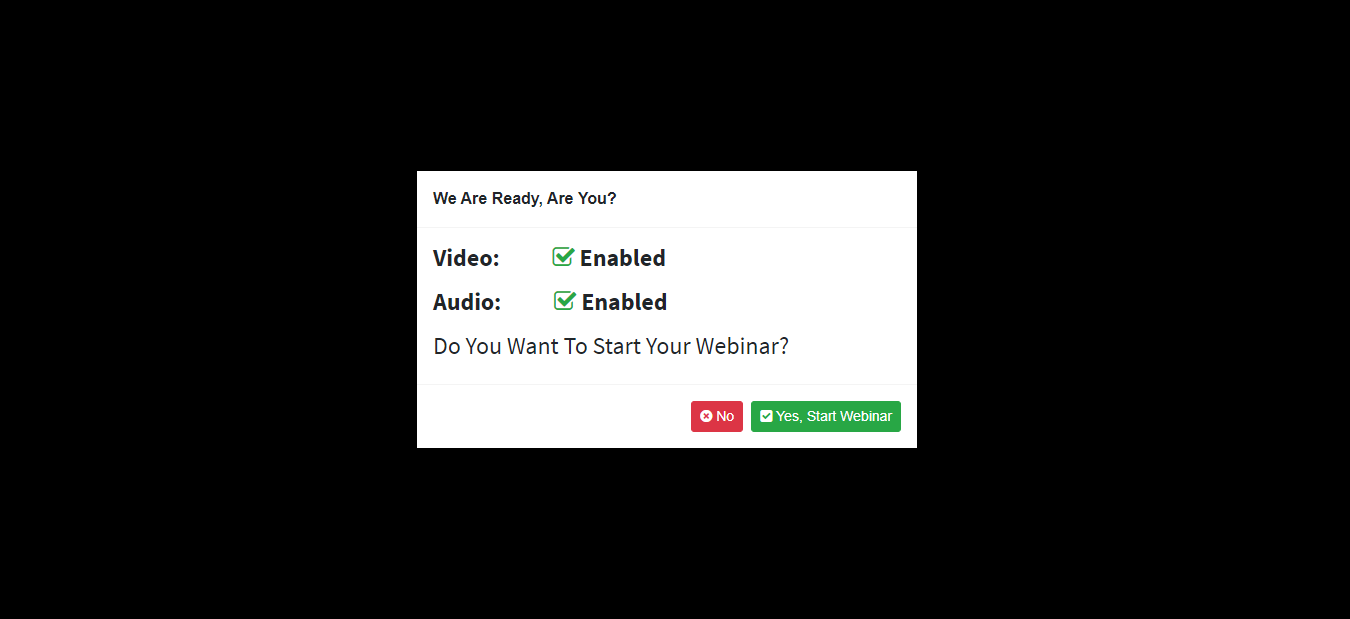
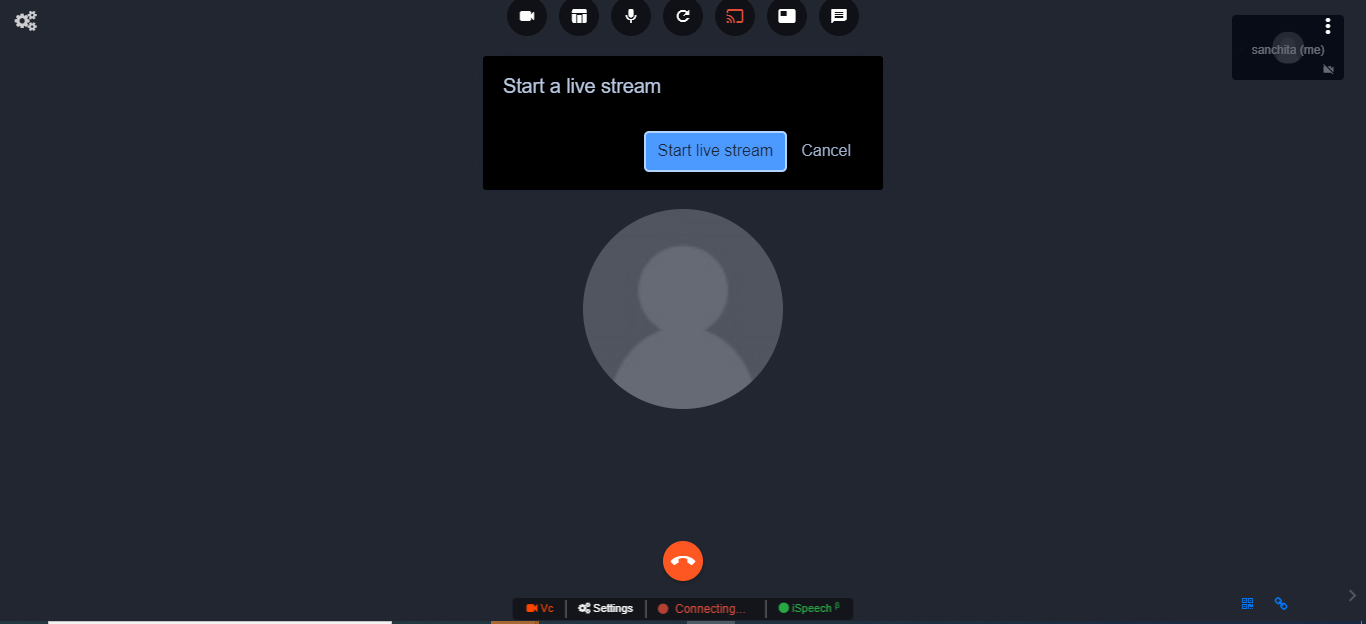
Now turn your ‘VC’ ON

User Can See the options by clicking on three dot Elipse Button given below

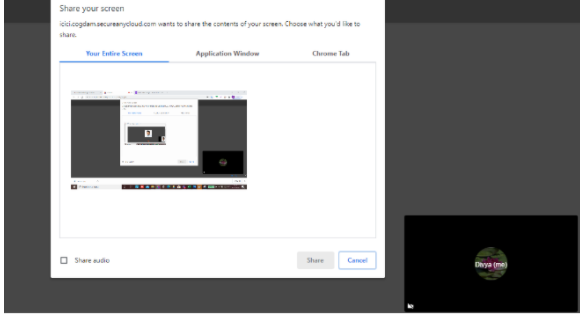
User can Chat ,share the screen and raise hand
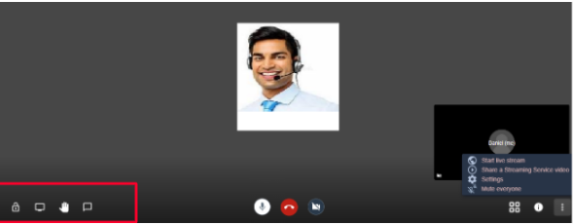
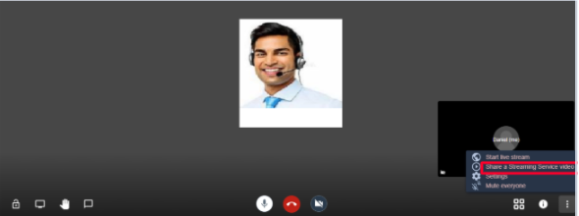
User Can Share A Streaming Service Video
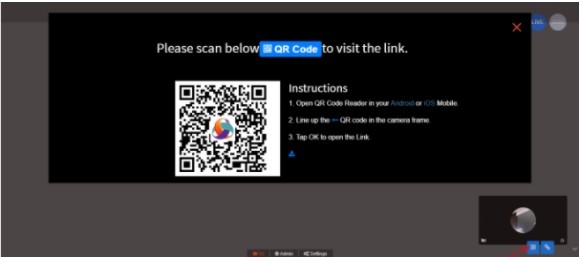
To share the link User can scan the QR Code
Click On Settings And Share The Meeting Link
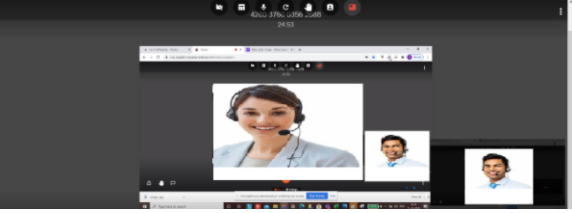
You Can Share Your Screen
Click On Ispeech So Whatever You Will Speak Will Be There On The Chatbox

Click The 3 elipse button of the top right and you can do the Recording,Live Streaming and Disconnect the meeting